Read time: 10 min | Last updated: January 2025
The average professional spends 28% of their workday on email, according to McKinsey's research on workplace productivity. For roles like recruiting, sales, and customer success, that percentage climbs even higher. Much of this time goes to writing similar responses repeatedly: acknowledging receipt, confirming meetings, following up on outstanding items, declining requests politely.
Automating email replies can reclaim significant chunks of that time. Organizations implementing email automation report time savings averaging 47% on communication tasks, translating to 6-8 hours weekly for heavy email users. But automation comes with a catch: done poorly, you'll sound like a robot, damage relationships, and create more problems than you solve.
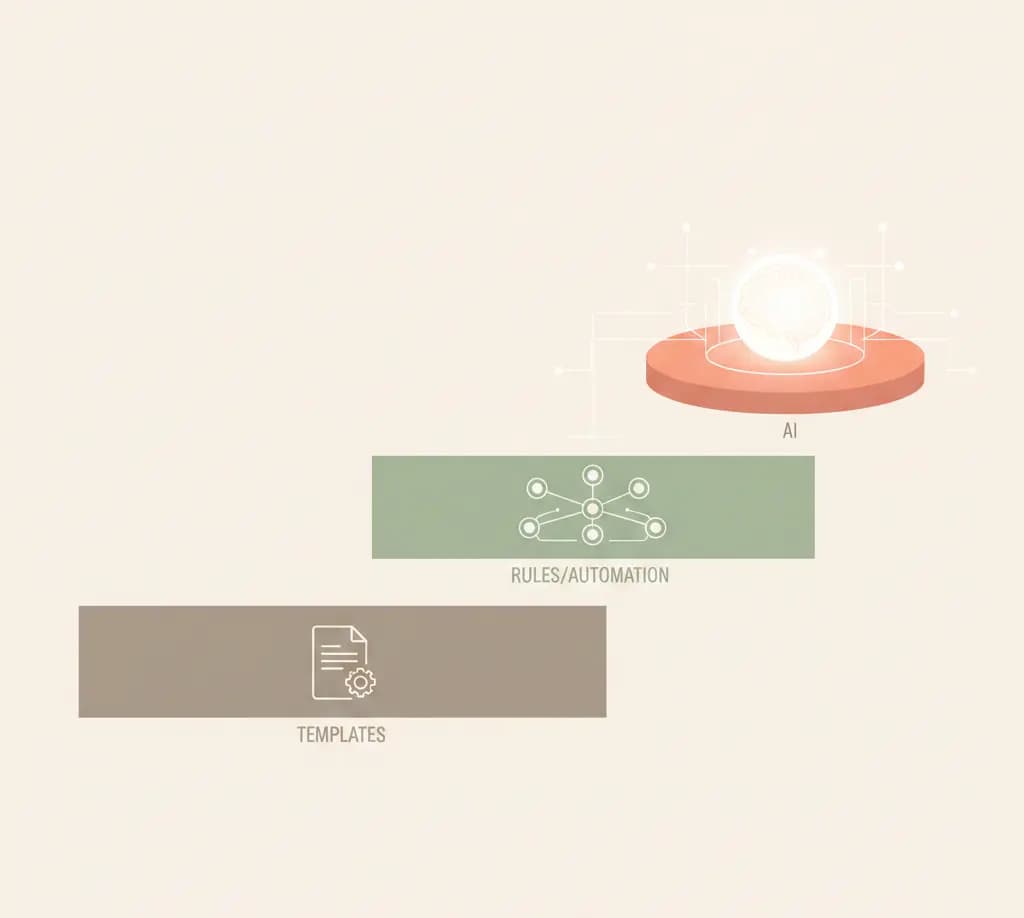
This guide covers three approaches to automate email replies, progressing from basic to advanced, with clear guidance on when each makes sense and where each fails.
Why Most Email Automation Fails
The typical advice is to set up canned responses or auto-responders. These work for narrow situations like out-of-office messages and ticket acknowledgments, but they fail for actual communication that requires context.
Most emails require understanding what the person actually asked, your history with them, the tone appropriate for the relationship, and details from previous messages in the thread. A canned "Thanks for reaching out!" reply to a frustrated client who's emailing for the third time about an unresolved issue doesn't save time. It creates more work when you have to follow up and repair the relationship.
Effective email automation must balance efficiency with personalization. The approaches below represent a spectrum from simple to sophisticated, each appropriate for different situations.
Level One: Templates and Canned Responses
Templates represent the simplest form of email automation. Gmail and Outlook both offer built-in features that let you write a response once, save it, and insert it with a few clicks. The setup takes about five minutes in either platform.
In Gmail, navigate to Settings, then See all settings, then Advanced, where you'll find the option to enable Templates. Once enabled, compose a new email with your template text, click the three dots menu, select Templates, and save the draft as a template. When you need to use it, the same menu lets you insert any saved template into a new message.
Outlook offers similar functionality through a slightly different path. Create a new email with your template text, then use File, Save As, and select Outlook Template as the format. When you need the template, go to New Items, then More Items, then Choose Form, and select from your User Templates.
Templates work well for truly repetitive messages where personalization genuinely doesn't matter. Acknowledging receipt of job applications with a standard "We'll review and get back to you within 5 business days" requires no customization. Confirming invoice receipt with details about payment processing dates follows a predictable format. Sending a calendar scheduling link needs no personalization beyond perhaps the recipient's name.
Templates fail anywhere the recipient expects evidence that you read their message. Ongoing conversations require contextual responses. Relationship-dependent communication demands tone matching. Any situation where a generic reply would feel dismissive calls for something more sophisticated.
The realistic time savings from templates alone runs 15-30 minutes daily. You get faster insertion of common responses, but still must read each message, decide which template applies, and often personalize before sending. Templates represent a starting point, not a complete solution.
Level Two: Rules-Based Automation
Rules-based automation moves beyond simple templates into triggered actions. Email clients and automation tools like Zapier, Make, and Power Automate let you create conditional logic: if an email matches certain criteria, perform specific actions automatically.
The power lies in combining conditions with actions. Messages containing "unsubscribe" in the subject can trigger an automated response and immediate archiving. Emails from senders on your VIP list can automatically move to a priority inbox while sending a mobile notification. Vendor communications can be labeled and routed to skip your main inbox entirely. Sent emails without responses after three days can trigger automated follow-up sequences.
Gmail's built-in filters handle simpler automations. Search for the pattern you want to match, click the search options dropdown, select Create filter, and choose from available actions including labeling, archiving, starring, forwarding, or applying templates. Outlook offers similar capabilities through its Rules feature, accessible by right-clicking any email that matches your desired pattern.
For more complex workflows, dedicated automation tools connect your email to other applications. A new email from a specific domain can automatically create a task in your project management tool. Messages with attachments from clients can trigger automatic saves to designated cloud folders. Meeting confirmations can update your CRM without manual intervention.
Rules-based automation excels at high-volume, predictable patterns. Internal processes like invoice routing and support ticket creation benefit enormously. Notifications you need to track but not respond to manually can be sorted and stored without consuming attention.
The limitations emerge when judgment becomes necessary. Responses that need to reference specific email content require human involvement. Situations where the "rule" has frequent exceptions create more frustration than efficiency. Rules can triage and route effectively, but generating actual replies remains limited to the most predictable scenarios.
Organizations implementing rules-based automation typically report 30-60 minutes of daily time savings. Inbox pre-sorting reduces triage time significantly. Routine items get handled without conscious thought. Follow-ups trigger automatically based on defined criteria.
Level Three: AI Email Assistants
AI email assistants represent the most sophisticated approach to email automation. Unlike templates that insert static text or rules that trigger predetermined actions, AI assistants read the full email thread, understand context, and generate replies that fit the specific conversation.
The critical difference from using ChatGPT or Claude manually lies in integration. Dedicated AI email assistants connect directly to your inbox through secure OAuth authentication. You don't copy and paste emails back and forth between applications. The AI sees your complete threads, learns your writing style from historical messages, and can send responses or schedule meetings with your approval. For a detailed comparison of integrated assistants versus manual AI prompting, see our analysis of why ChatGPT copy-paste workflows fall short.
AI assistants transform several categories of email work. Reply drafting happens in your voice because the AI analyzes your past sent messages to understand how you typically write. A response to your CEO won't sound like a reply to a vendor because the system recognizes relationship context and adapts tone accordingly. Instead of generic templates, the AI references specifics from the thread, mentioning the proposal sent Tuesday, the question about Q3 timelines, or the decision to proceed with Option B.
Scheduling coordination demonstrates particularly dramatic efficiency gains. When someone requests a meeting, traditional workflows require checking your calendar, identifying available times, drafting a response with options, waiting for confirmation, and creating the calendar invite. AI assistants collapse this into a single interaction: the system checks availability, proposes workable times, drafts an appropriate response, and creates the invite once confirmed. What typically requires 3-4 email exchanges becomes one.
Follow-up automation becomes contextual rather than generic. Instead of a templated "just checking in" message, the AI drafts nudges that reference the specific conversation, the outstanding question, and an appropriate timeframe. Triage and prioritization happen before you open your inbox, with messages sorted by urgency, flagged items requiring immediate attention, and long threads summarized so you understand the situation before diving in.
The time savings compound as the system learns. Initial setup typically requires 30 minutes to connect accounts and configure basic preferences. The first week involves reviewing AI drafts and making corrections that train the system. By week two, most drafts require minimal editing. Organizations with heavy email users report 1-3 hours of daily time savings once calibration is complete.
AI assistants work best for anyone processing 50 or more messages daily. Roles with repetitive but personalized communication requirements like sales, recruiting, and customer success see particularly strong returns. Anyone maintaining relationships at scale benefits from consistent, contextual responses that would be impossible to produce manually.
Caution remains appropriate for sensitive communications including legal matters, HR issues, and complex negotiations. External emails to new contacts warrant verification that the AI captured the right tone. Any situation with significant consequences for getting something wrong should include human review.
Setting Up AI-Powered Email Automation
The implementation process for AI email assistants follows a predictable pattern that minimizes risk while accelerating time to value.
Connection happens through OAuth, the same secure authentication method used by other business applications. You grant specific permissions for reading email, sending messages, and accessing calendar data. These permissions remain revocable at any time through your account settings. When evaluating providers, look for minimal permission requests limited to what's actually needed, clear documentation of data handling policies, and straightforward disconnection processes.
Configuration establishes your preferences before the AI begins drafting. Tone settings might range from formal to casual or adapt automatically based on recipient. Signoff preferences capture whether you typically use "Best," "Thanks," or something else. Working hours define your availability for meetings. Scheduling buffers establish time gaps between appointments. VIP designations ensure certain senders always receive priority treatment.
The critical early decision involves automation levels for different scenarios. Meeting scheduling with known contacts might warrant automatic sending with calendar invites attached. Confirming receipt of documents might qualify for auto-send treatment. First responses to inbound leads typically require human review before sending. Communications with executives or board members should stay in draft-for-review mode indefinitely. Sensitive topics around compensation, legal matters, or HR issues might remain entirely manual.
| Scenario | Recommended Automation Level |
|---|---|
| Meeting scheduling with known contacts | Auto-send with calendar invite |
| Document receipt confirmations | Auto-send |
| Inbound lead responses | Draft for review |
| Executive communications | Draft for review |
| Sensitive topics | Manual only |
Starting in suggestion mode rather than auto-send builds appropriate trust. The AI drafts responses for your review. You edit, approve, or reject each draft. The system learns from your corrections. After a week or two of this calibration period, certain response types earn enough trust for automatic sending while others remain in review mode permanently.
Ongoing governance requires periodic attention. Weekly review of AI-sent messages catches any emerging issues. Spot-checking ensures your voice remains consistent. Rule adjustments handle edge cases discovered through actual use.
Choosing the Right Approach for Your Situation
The appropriate automation level depends on email volume, pattern predictability, and relationship sensitivity.
Professionals sending fewer than 20 emails daily typically benefit most from templates. The investment required for more sophisticated automation doesn't justify the returns at lower volumes. Predictable, high-volume patterns point toward rules-based automation that can handle routing and triggered responses without AI costs. Personalization requirements at scale indicate AI assistants as the appropriate solution. Sensitive communication environments might combine manual handling for high-stakes messages with templates for routine items.
| Daily Email Volume | Pattern Type | Recommended Approach |
|---|---|---|
| Under 20 | Any | Templates |
| 20-50 | Highly predictable | Rules-based |
| 20-50 | Variable | AI assistant |
| Over 50 | Any | AI assistant |
Most professionals benefit from combining approaches. Templates handle truly standard messages that require no variation. Rules manage routing and triage to keep the inbox organized. AI generates the bulk of communication that needs personalization but follows recognizable patterns.
Measured Time Savings by Approach
Documented implementations provide benchmarks for expected returns from each automation level.
Templates alone deliver 15-30 minutes daily. The savings come from faster insertion of common responses, though you still must read each message, select the appropriate template, and customize before sending.
Rules-based automation pushes savings to 30-60 minutes daily. Pre-sorted inboxes reduce triage time significantly. Routine items reach appropriate destinations without manual intervention. Automated follow-ups maintain momentum without conscious effort.
AI email assistants deliver 1-3 hours daily for heavy users. Drafts arrive ready for most messages. Scheduling happens conversationally without back-and-forth. Context switching decreases as everything happens in one interface. The savings compound as the AI learns your patterns and preferences.
For someone processing 100 or more emails daily, common in recruiting, sales, and customer success roles, AI assistance often reclaims 10 or more hours weekly. At median knowledge worker compensation, this represents productivity value exceeding $15,000 annually per person.
Addressing Common Concerns
Several objections arise consistently when professionals consider email automation.
The question of whether recipients can tell responses are automated depends entirely on implementation quality. Templates and basic auto-responders produce obviously generic output that recipients recognize immediately. AI-generated responses that incorporate thread context, relationship history, and learned writing style become indistinguishable from manually composed messages. Recipients can't detect automation because the substantive difference has disappeared. You still direct what gets communicated, the AI simply handles the mechanical work of composing.
Privacy and security concerns warrant serious attention. Legitimate providers use OAuth connections rather than password sharing. Data storage should be minimal, processing messages without indefinitely retaining content. Clear retention policies should specify what gets stored and for how long. Enterprise deployments should verify SOC 2 compliance. Disconnection and data deletion processes should be straightforward and documented.
The risk of sending incorrect messages decreases dramatically with appropriate safeguards. Starting in review mode prevents any unsupervised sending until trust is established. Keeping sensitive categories permanently in manual mode eliminates risk for high-stakes communications. The residual risk for routine messages becomes manageable with appropriate guardrails.
Compatibility concerns are largely resolved for standard platforms. Most AI assistants support Gmail and Outlook, which together cover more than 90% of professional email usage. Some providers extend support to additional clients.
Getting Started with Email Automation
The entry point depends on current email burden and available investment.
Low volume with simple needs calls for enabling templates in Gmail or Outlook. The setup takes 10 minutes and delivers roughly 10 minutes of daily savings. The effort-to-return ratio makes this an obvious first step.
High volume with predictable patterns warrants rules-based automation. Allocating an hour to configure filters and automation workflows typically yields 30-60 minutes of daily savings. The payback period is immediate.
High volume with relationship-dependent communication points toward AI email assistants. Initial setup runs about 30 minutes with ongoing calibration over the first week or two. Once configured, daily savings potentially reach several hours for heavy email users.
The underlying goal isn't removing yourself from communication. It's removing yourself from the mechanical aspects, the typing, the scheduling coordination, the routine responses, so attention can focus on messages that genuinely require human judgment and relationship investment.
Ayari combines AI drafting, calendar management, and inbox triage through a conversational interface. You describe what you need in plain language, the system handles execution. For professionals whose email load has become unsustainable, it's worth exploring.
Frequently Asked Questions
Can I automate replies for specific senders only?
Most AI assistants support granular rules based on sender, domain, or email content. You might configure automatic drafts for internal team messages while requiring human review for external contacts. VIP lists ensure certain senders always receive priority treatment regardless of other automation settings.
What distinguishes auto-reply from AI-generated replies?
Auto-reply sends identical text regardless of incoming content, like out-of-office messages that acknowledge receipt without engaging with the substance. AI-generated replies read the incoming email and craft contextual responses that address specific questions, reference relevant history, and match appropriate tone. One represents a template, the other represents actual communication.
Will automated replies hurt email deliverability?
Automation itself doesn't impact deliverability. The risk emerges from sending obviously robotic or irrelevant responses that recipients mark as spam. Context-aware AI replies avoid this problem because they're substantively relevant to the conversation. The messages look and function like human-composed email because they engage with actual content rather than ignoring it.
How quickly does AI learn my writing style?
Most systems capture basic stylistic patterns within 24 hours of analyzing your sent email history. The first week or two involves refinements as you edit AI drafts and the system incorporates your corrections. After this calibration period, most drafts require minimal changes. The learning continues indefinitely, with the AI becoming increasingly accurate over time.
Can I use AI automation for cold outreach?
AI can draft personalized outreach at scale, but mass automated sending still requires human oversight. Use AI to generate drafts, then review carefully before sending. Compliance with email regulations including CAN-SPAM and GDPR remains your responsibility regardless of how messages are composed.
Ready to reclaim your inbox? See how Ayari handles email automation or try it free.