
Read time: 12 min | Last updated: January 2026
Your Outlook inbox isn't getting smaller. The average professional receives 120+ emails daily, and Outlook's built-in tools weren't designed for this volume. Folders, rules, and flags help organize—but they don't help you actually respond faster or stop the pile from growing.
AI email assistants change the equation. Instead of manually triaging every message, AI can surface what matters, draft replies in your voice, and handle scheduling without the back-and-forth. The question isn't whether to use AI with Outlook—it's which tool fits your workflow.
This guide compares six AI assistants that work with Outlook, with honest assessments of what each does well and where they fall short.
TL;DR: Best AI Email Tools for Outlook (2026)
| Tool | Best For | Starting Price | Key Strength |
|---|---|---|---|
| Ayari | All-in-one email + calendar + integrations | $12.99/month | Conversational workflows that execute, not just draft |
| Microsoft Copilot | Deep Microsoft 365 integration | $30/month | Native Outlook experience |
| Superhuman | Speed and keyboard-first users | $30-40/month | Fastest email interface |
| MailMaestro | Quick executive communication | $12/month | One-click professional replies |
| Clean Email | Inbox organization and cleanup | $11.99/month | Bulk email management |
| Boomerang | Email send-later and follow-up tracking | Free / $4.99+ | Send-later and reminders |
1. Ayari – Best All-in-One AI Assistant for Outlook
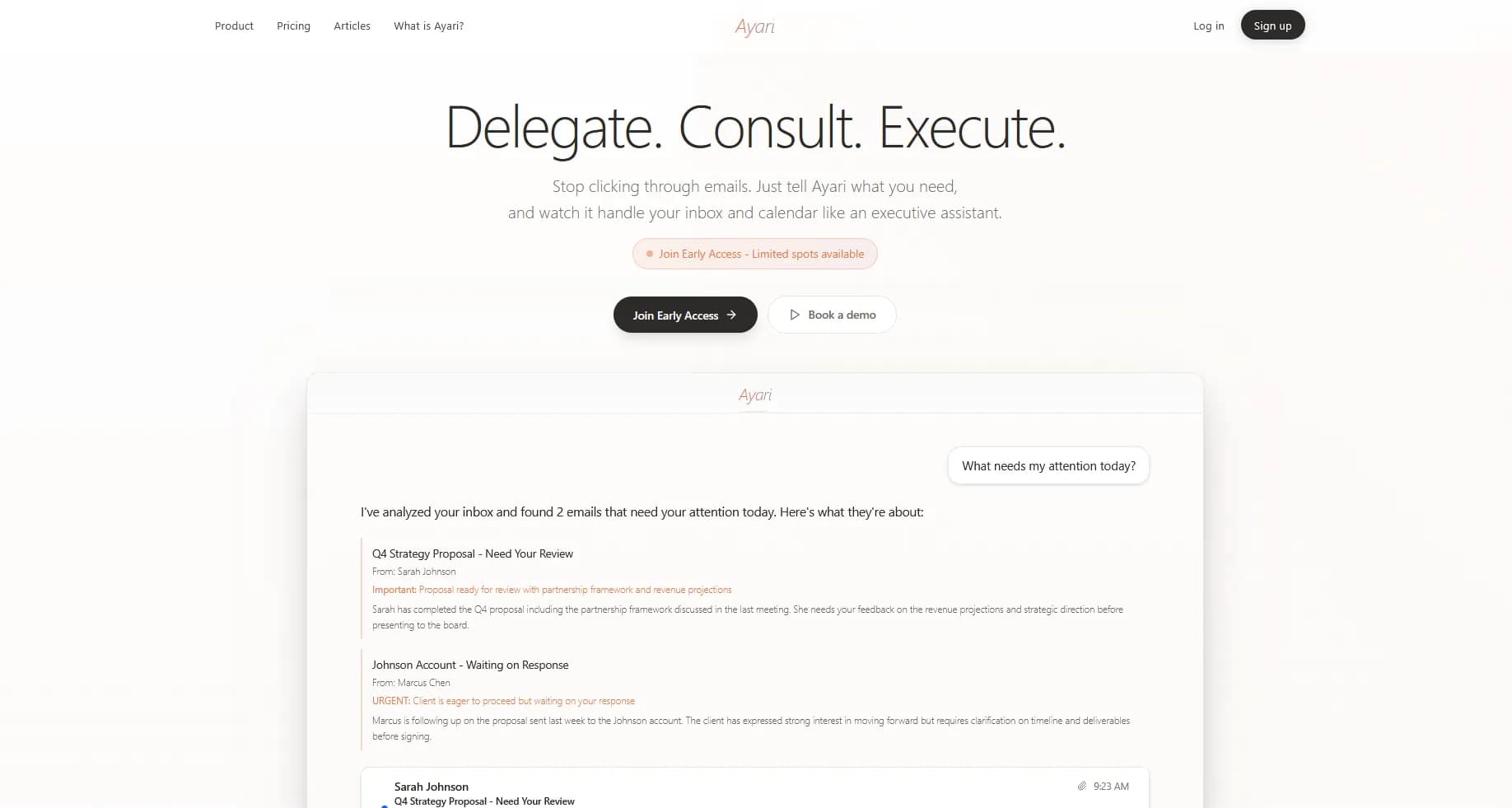
Ayari takes a different approach than most Outlook AI tools. Instead of adding features to your existing email client, Ayari provides a complete interface where you can manage email, calendar, and connected tools through natural conversation.
The core idea: tell Ayari what you need in plain language, and it executes. Not just drafts—actually sends emails, schedules meetings, and coordinates across your tools.
Key Features
- Conversational workflows: Type "show me my important emails and draft replies" and get exactly that, prioritized emails with AI-drafted responses ready to review and send
- Native email and calendar panel: Full email management interface, not just a chatbot overlay
- Thread summaries: Instantly understand long email chains without reading every message
- Batch draft replies: Get AI-drafted responses for all your important emails at once, ready to review and send
- Smart filters: Create filters for specific senders or topics so you never miss what matters
- Daily briefings: Automated summary of what needs your attention each morning
- Multi-tool integration: Connects with Notion (Slack and more coming) alongside Outlook
- True conversational power: Ask anything about your emails—"What did Sarah say about the budget last week?" or "Which clients haven't responded in 7 days?"—and get real answers
Pros
- Actually executes tasks: Most AI tools draft text for you to copy-paste. Ayari sends emails, creates calendar events, and takes action with your approval
- Genuinely consult your inbox: The conversational interface means you can ask exactly what you need for any situation, like having an assistant who's read every email and can answer any question
- Unified workspace: Email, calendar, and integrations in one place instead of switching between apps
- Works with Outlook and Gmail: Not locked into one ecosystem
Cons
- No free tier: Free trial only, unlike some competitors
- No Outlook add-in: Works as a separate interface rather than embedding directly in Outlook
Pricing
Starting at $12.99/month.
Best For
Professionals who want AI that does more than draft emails, handling the full workflow of reading, prioritizing, responding, and scheduling through natural conversation.
2. Microsoft Copilot – Best for Microsoft 365 Power Users
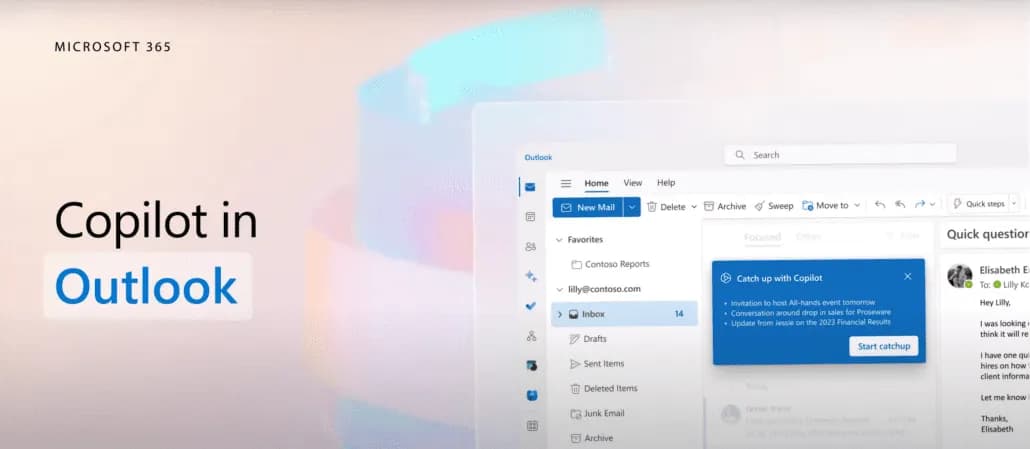
If your company runs on Microsoft 365, Copilot is the obvious first consideration. It's built directly into Outlook and integrates with Word, Excel, Teams, and the rest of the Microsoft ecosystem.
Copilot excels at tasks within the Microsoft world: summarizing email threads, drafting replies based on context, and pulling information from your OneDrive or SharePoint files into responses.
Key Features
- Thread summarization: Catch up on long email chains without reading every message
- Draft generation: Creates replies based on conversation context and your prompt
- Tone adjustment: Rewrite emails to be more formal, casual, or concise
- Meeting scheduling: Suggests times based on your Outlook calendar
- Cross-app integration: Reference Excel files, Word docs, and Teams conversations
Pros
- Seamless Outlook integration: No installation or separate app—it's just there
- Deep Microsoft 365 connections: Pulls context from across your workspace
- Enterprise-ready: Compliance and security built in for large organizations
- Constantly improving: Microsoft ships updates frequently
Cons
- Generalist tool: Good at many things, great at nothing specific
- Expensive for individuals: $30/month on top of your M365 subscription
- Limited outside Microsoft: Doesn't connect to non-Microsoft tools well
- Can feel generic: Drafts sometimes lack personality without significant prompting
Pricing
$30/user/month, requires Microsoft 365 subscription.
Best For
Teams already invested in Microsoft 365 who want AI assistance without adding another vendor or tool to manage.
3. Superhuman – Best for Speed-Obsessed Users
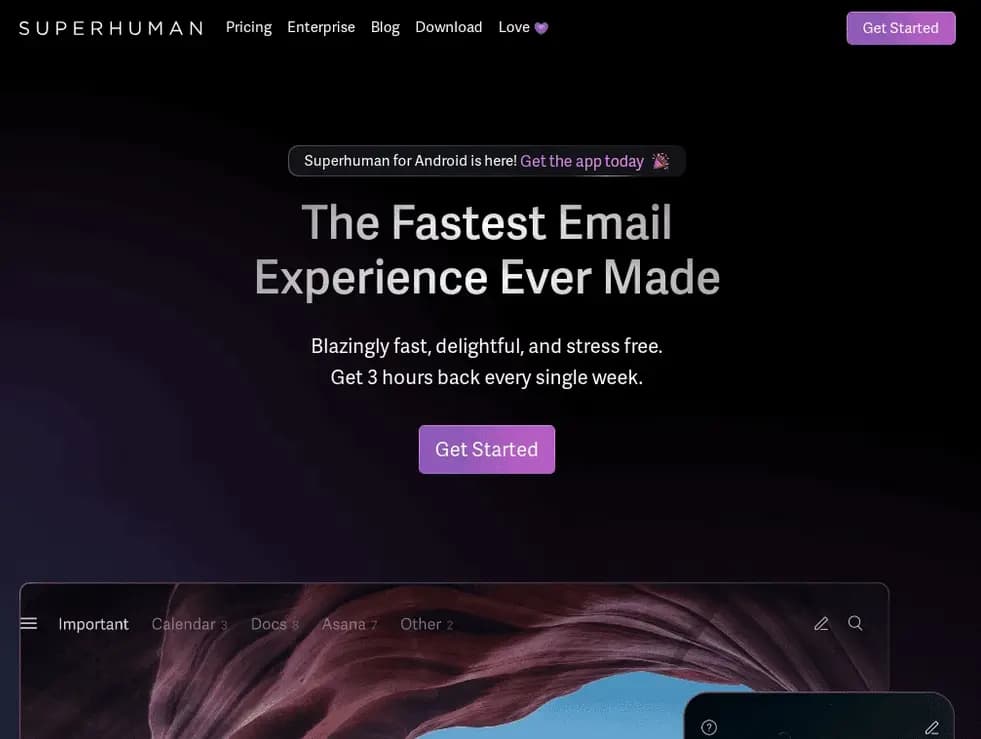
Superhuman rebuilt email from the ground up with one goal: speed. Everything is keyboard-driven, the interface is minimal, and AI features focus on getting through your inbox faster rather than automating complex workflows.
It's polarizing, some users swear by it, others find the learning curve not worth it. If you process hundreds of emails daily and want to shave seconds off every interaction, Superhuman delivers. (Note: Superhuman was acquired by Grammarly in October 2025 but continues operating independently.)
Key Features
- Keyboard-first design: Every action has a shortcut, minimal mouse required
- AI triage: Automatically sorts emails by importance (Auto Labels)
- Auto Drafts: AI-generated reply drafts ready when you open emails
- Read receipts: Know when emails are opened
- Snippets: Templated responses for common situations
- Split inbox: Separate important emails from everything else
- Outlook and Gmail support: Works with both platforms
Pros
- Genuinely fast: Once you learn the shortcuts, you fly through email
- Beautiful, minimal interface: No clutter or distractions
- AI suggestions are quick: One-click responses for simple emails
- Strong on mobile: Consistent experience across devices
Cons
- Steep learning curve: You need to invest time learning keyboard shortcuts
- Premium pricing: $30-40/month for what's primarily an email client
- Limited integrations: Focused on email, doesn't connect to broader workflows
- Overkill for moderate email volumes: The speed benefits compound with high volume
Pricing
Starter: $30/month. Business: $40/month (adds CRM integrations). Enterprise: Custom pricing.
Best For
Power users processing 200+ emails daily who want maximum speed and are willing to learn new workflows.
4. MailMaestro – Best for Quick Executive Communication
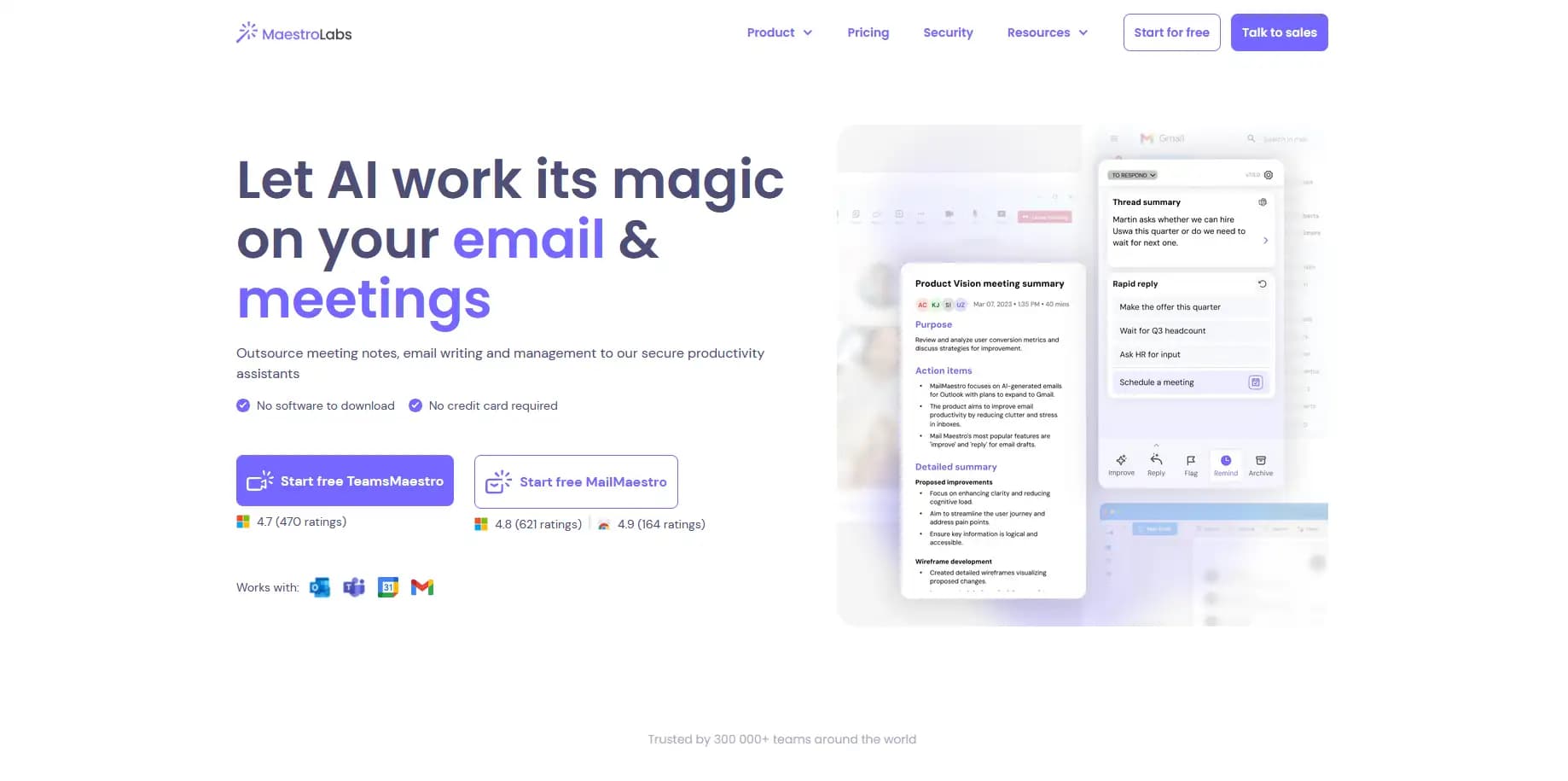
MailMaestro focuses narrowly on one thing: helping you write better emails faster. It integrates with Outlook as an add-in and generates professional responses based on the email you're replying to.
The tool is particularly popular with executives and managers who need to write many emails but don't have time to craft each one from scratch.
Key Features
- One-click replies: Generate professional responses instantly
- Tone selection: Formal, friendly, assertive, or custom tones
- Multilingual support: Draft emails in multiple languages
- Outlook add-in: Works directly in your existing Outlook interface
- Quality scoring: Rates your drafts for clarity and professionalism
Pros
- Dead simple: No learning curve, just click and generate
- Good output quality: Drafts are professional and well-structured
- Fast integration: Adds to Outlook without changing your workflow
- Affordable: Lower price point than full AI assistants
Cons
- Writing only: Doesn't triage, organize, or manage your inbox
- No calendar integration: Can't schedule meetings or check availability
- Limited customization: What you see is what you get
- Requires copy-paste workflow: Generates text, you do the rest
Pricing
Free tier with limited generations. Pro at $12/month for unlimited.
Best For
Busy professionals who specifically want help writing emails faster without changing their broader workflow.
5. Clean Email – Best for Inbox Organization
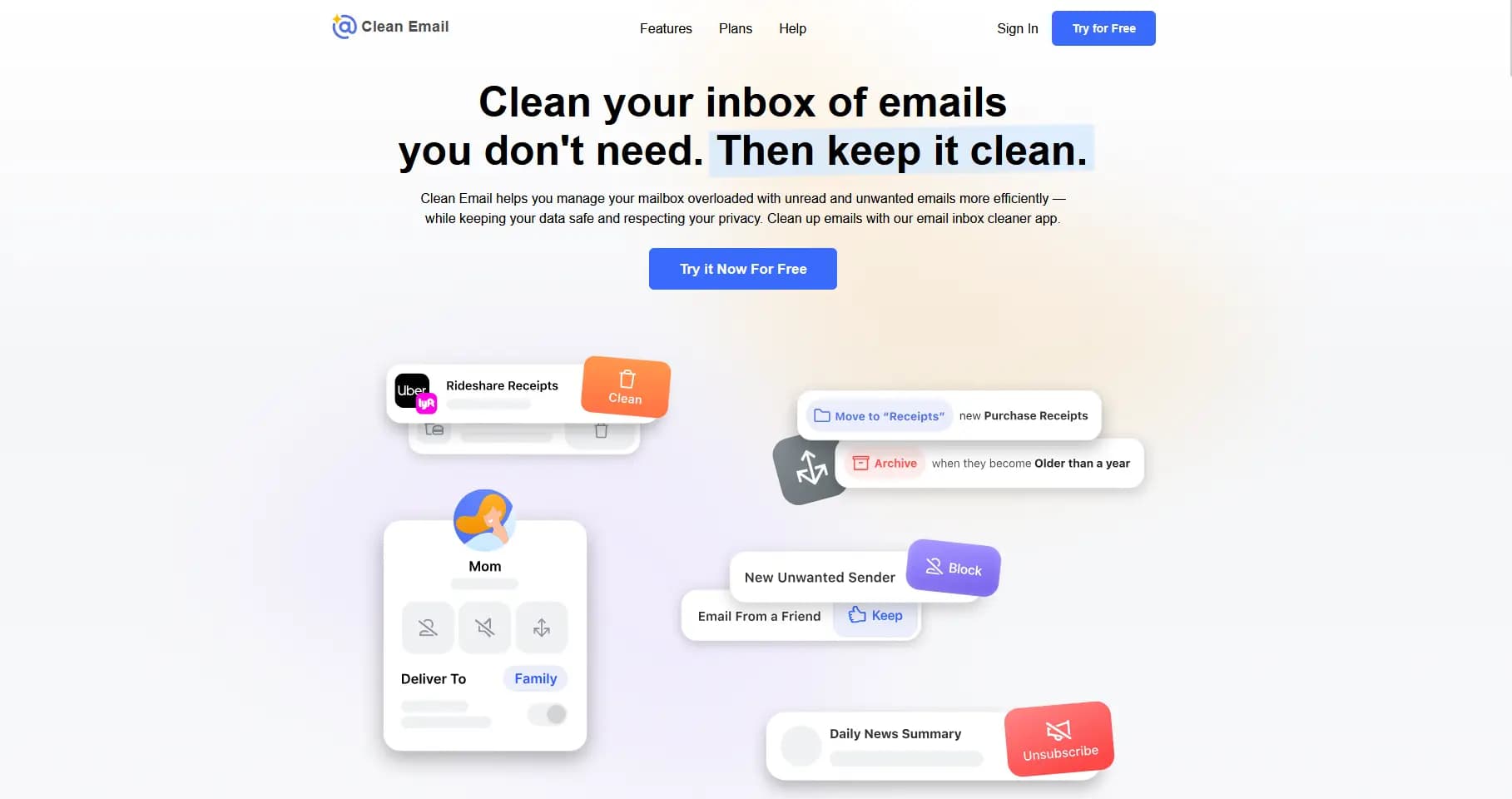
Clean Email isn't an AI writing assistant—it's an inbox management tool. If your problem is thousands of unread emails, newsletters you never signed up for, and chaos in your folders, Clean Email helps you get organized.
Think of it as a power tool for inbox cleanup rather than a daily assistant.
Key Features
- Smart folders: Automatically groups emails by sender, type, and content
- Bulk cleanup: Select and delete/archive thousands of emails at once
- Auto-clean rules: Set rules to automatically handle future emails
- Unsubscribe: One-click removal from mailing lists
- Privacy monitor: Identifies emails with tracking pixels
- Sender blocking: Block unwanted senders permanently
Pros
- Solves inbox chaos: Genuinely effective at cleaning up years of email mess
- Set-and-forget rules: Auto-clean keeps things organized long-term
- Privacy features: Tracking pixel detection is useful
- Works across platforms: Outlook, Gmail, Yahoo, and more
Cons
- Not an AI assistant: Doesn't draft replies or help with communication
- One-time heavy lifting: After initial cleanup, you may not need it daily
- Subscription for cleanup tool: Some users prefer one-time purchase
- Limited workflow integration: Standalone tool, doesn't connect to other apps
Pricing
Free trial available. Premium starts at $11.99/month.
Best For
Anyone whose inbox is a disaster zone who needs to get organized before thinking about AI assistance.
6. Boomerang – Best for Email Send-Later and Follow-ups
Boomerang has been around since 2010 and focuses on the timing side of email: scheduling emails to send later, follow-up reminders, and response tracking. Its AI feature "Respondable" analyzes your emails and predicts response likelihood.
Key Features
- Send later: Schedule emails to send at optimal times (the core feature)
- Boomerang messages: Temporarily archive emails and have them reappear later
- Follow-up reminders: Get notified if you don't receive a response
- Read receipts: Know when emails are opened
- Respondable AI: Scores your email's likelihood of getting a response using machine learning
- Inbox Pause: Temporarily stop incoming emails for focus time
- Meeting scheduling: Propose times and let recipients pick (Pro feature)
Pros
- Reliable send-later: The core scheduling feature just works
- Useful reminders: Follow-up prompts prevent emails from falling through cracks
- Lightweight: Does a few things well without feature bloat
- Long track record: Stable, established product since 2010
Cons
- AI features are basic: Respondable helps but isn't a full AI assistant
- Interface feels dated: Design hasn't kept up with modern standards
- Feature overlap: Many email clients now include send-later natively
- Add-in can be clunky: Occasional performance issues in Outlook
Pricing
Basic: Free (10 message credits/month). Personal: $4.99/month (unlimited credits). Pro: Unlocks Respondable AI, Meeting Scheduling, and advanced features.
Best For
Users who primarily need help with email timing—scheduling when emails send and ensuring follow-ups happen.
Feature Comparison: Outlook AI Assistants
| Feature | Ayari | Copilot | Superhuman | MailMaestro | Clean Email | Boomerang |
|---|---|---|---|---|---|---|
| AI email drafting | Yes | Yes | Yes | Yes | No | Basic |
| Inbox triage/prioritization | Yes | Basic | Yes | No | No | No |
| Calendar integration | Yes | Yes | No | No | No | Yes |
| Conversational interface | Yes | No | No | No | No | No |
| Send on your behalf | Yes | No | No | No | No | Yes |
| Third-party integrations | Notion, more coming | Microsoft only | Limited | No | No | Limited |
| Thread summaries | Yes | Yes | No | Yes | No | No |
| Batch draft replies | Yes | No | No | No | No | No |
| Send later/scheduling | No | Yes | Yes | No | No | Yes |
| Free tier | No | No | No | Yes | Limited | Yes |
How to Choose the Right Outlook AI Tool
Choose Ayari if...
- You want AI that actually executes tasks, not just drafts text
- You need email AND calendar management in one place (see our AI calendar management guide)
- You use tools beyond Microsoft (Notion, Slack coming)
- You prefer natural conversation over clicking through menus
- You want specialized workflows like daily briefings
Choose Copilot if...
- Your company is all-in on Microsoft 365
- You want zero friction—no new apps to install
- Enterprise compliance and security are top priorities
- You need AI that pulls context from SharePoint, Teams, and OneDrive
Choose Superhuman if...
- You process 200+ emails daily
- You're willing to learn keyboard shortcuts
- Speed is your top priority over features
- You primarily just need faster email, not broader workflows
Choose MailMaestro if...
- You specifically want help writing professional emails
- You don't need inbox management or calendar features
- You want something that just adds to Outlook without changing your workflow
- Budget is a concern
Choose Clean Email if...
- Your inbox is a disaster that needs cleaning first
- You're drowning in newsletters and subscriptions
- You want set-and-forget organization rules
- AI assistance can wait until you're organized
Choose Boomerang if...
- Email send-later timing is your main challenge
- You need reliable follow-up reminders so nothing falls through cracks
- You want something lightweight and proven (since 2010)
- Advanced AI features aren't a priority
Frequently Asked Questions
Does Outlook have built-in AI?
Yes, if you have Microsoft Copilot. Copilot adds AI drafting, summarization, and scheduling to Outlook. However, it costs $30/month extra on top of your Microsoft 365 subscription and focuses on Microsoft tools only. For a deeper comparison of using ChatGPT versus integrated AI assistants, see our guide on ChatGPT for email integration.
Is Microsoft Copilot worth $30/month?
For heavy Microsoft 365 users, potentially yes—especially if you also use Word, Excel, and Teams where Copilot helps. For Outlook-only use, standalone AI assistants often provide more value at similar or lower prices.
Can AI read all my Outlook emails?
AI assistants require permission to access your email through OAuth (secure authorization). Reputable tools don't store your emails permanently—they process them to provide assistance, then discard the content. Always check privacy policies before connecting any tool.
What's the difference between AI email assistants and Outlook rules?
Outlook rules follow rigid if-then logic: if sender equals X, move to folder Y. AI assistants understand context and meaning. They can identify "important" emails based on content, relationships, and patterns—not just sender addresses or keywords.
Can AI send emails automatically without my approval?
Most AI assistants draft emails for your review before sending. Ayari can send with your approval after you review drafts. Some tools offer fully automatic responses for specific scenarios, but this is typically optional and configurable. For more on email automation approaches, see our guide on how to automate email replies.
Do these tools work with Outlook desktop and web?
Most work with both, though features sometimes vary. Copilot is fully integrated across Outlook versions. Add-ins like MailMaestro and Boomerang work in both. Ayari provides its own interface that connects to your Outlook account.
Which tool is best for small businesses?
For small teams wanting maximum capability per dollar, Ayari's all-in-one approach often makes sense, you get email, calendar, and integrations without paying for multiple tools. For Microsoft-heavy shops, Copilot's seamless integration reduces training needs.
Can I use multiple AI email tools together?
Yes, though feature overlap can cause confusion. A common combination: Clean Email for organization + Ayari or Copilot for daily assistance. Avoid running multiple drafting tools simultaneously.
Conclusion: Which AI Email Assistant Should You Choose?
The best Outlook AI tool depends on what's slowing you down:
If you want the most complete solution, Ayari handles email, calendar, and integrations through natural conversation. Tell it what you need, and it executes—not just drafts. For professionals juggling multiple tools and wanting AI that actually takes action, it's the most capable option.
If you're deep in Microsoft 365, Copilot's seamless integration is hard to beat. No new apps, no switching contexts—AI assistance appears right where you already work.
If raw speed is what you're after, Superhuman's keyboard-driven interface will make you faster, assuming you invest the time to learn it.
If you just need better emails, MailMaestro does one thing well at a reasonable price.
If your inbox is chaos, start with Clean Email to get organized, then add AI assistance.
If email timing is your challenge, Boomerang's send-later and follow-up features have worked reliably for over a decade.
For most professionals looking to genuinely transform how they handle email, an AI assistant that executes workflows—not just generates text—delivers the biggest productivity gains. That's why we built Ayari.
Try Ayari free → and see what conversational email management feels like.